
Every machine I set up used to be an imperative pile: a dotfiles repo with an install script, a list of brew install commands, and a few curl | sh lines that had accreted. The trouble with a pile of steps is that it only tells you what to do, never what you will have. The only way to learn the real state of a machine was to run the whole thing and see what broke, and the machine I ended up on rarely matched the one I thought I had configured.
kempt is the tool I wrote for that. It is declarative machine setup you can read before you run: a single manifest describes the software and files a machine should have, and kempt shows you exactly what it would change before it changes anything.
The manifest
A kempt config is one kempt.toml file plus the config files it points at. The same manifest that installs your software also lays down the settings those tools need, so a machine's programs and its configuration are described together in one place, instead of being split between an install script and a separate config.
kempt can only do a fixed set of things by design. There is no way to include a shell script or a one-off command into a manifest. That matters because it means nothing in the file can do something kempt cannot show you first: everything a manifest asks for is something kempt already knows how to inspect, so you can read the whole plan before anything runs. That is what lets you trust the kempt.toml file.
The file opens by declaring which version of the standard it speaks:
[kempt]
spec = 1
kempt reads that number and refuses a manifest written for a version it does not understand, rather than guessing and mis-applying it. An older copy of kempt will not touch a newer manifest. Everything else in the file is packages and profiles.
Packages
A package is a named unit of setup: a description, an optional list of other packages it needs, an optional only guard for the platforms it applies to, and a series of steps. Here is the shape, trimmed from the package that installs the pi coding agent on my machine:
[packages.pi]
description = "Pi coding agent + public extensions"
needs = ["core"]
only = { os = "darwin" }

  [[packages.pi.install]]
  brew.formulas = ["ddgr", "pandoc"]
Steps run top to bottom within a package, and a package that lists needs = ["core"] runs after core. Before it acts, every step checks the machine and does nothing if the machine already matches what the manifest asks for. So running kempt on a machine that is already set up correctly changes nothing and prints a list of checkmarks, and running it after a small edit does only the one thing that changed.
The primitives
kempt knows how to do a fixed list of things, and that list is the entire vocabulary a manifest gets. There is no step that runs a shell script, and that is on purpose: a script can contain anything, and you cannot tell what it will do to your machine just by reading the manifest that calls it. kempt only allows steps it can show you in full, so if it is missing something you need, the fix is to add that capability to kempt itself, in the open, rather than hide it inside a script nobody can see into. Here is the full list , grouped by what each one is allowed to change:
| Primitive | Class | What it does |
|---|---|---|
| `install` | software | Install packages via `brew`, `winget`, `apt`, `npm`, or `pi`. |
| `github-release` | software | Download a release asset, verify its checksum, install the binary. |
| `download` | software | Install a binary from a set of predictable web addresses, checksum-verified. |
| `git-clone` | software | Clone a repo at a pinned ref or branch. |
| `service` | software | Render a launchd or systemd user service, reload only on change. |
| `symlink` | files | Link a repo file into place, backing up any real file first. |
| `json-merge` | files | Add settings to a JSON config file without replacing it. |
| `toml-merge` | files | The same, for TOML config files. |
| `line-in-file` | files | Ensure a line or block exists, for shell includes and PATH nudges. |
| `verify` | read-only | Declared checks: a command exists, a URL returns 2xx, a symlink points where it should. |
kempt sorts every step into one of three groups itself: steps that install software, steps that write files, and read-only checks. That grouping is what makes one useful shortcut safe. kempt refresh re-checks your config for changes, and it can go ahead and apply the file changes on its own, like a moved symlink or an updated config file, because those are low-risk. It never installs or upgrades software on its own, though; that always waits for you to ask.
Installing software
A single install step can pull from more than one package manager at once. You can list brew formulas for macOS, apt packages for Linux, and npm or pi packages for any machine that has Node or pi, all in one entry, and kempt runs whichever ones fit the machine in front of it:
[[packages.core.install]]
brew.formulas = ["starship", "ripgrep", "jq", "fd", "eza"]
apt = ["ripgrep", "jq", "fd-find"]
The npm and pi lists are where most of a machine's tools live for me, and they come with one distinction worth understanding.
Pinned versus rolling
An npm or pi entry can be written two ways, and the difference decides whether a tool moves on its own.
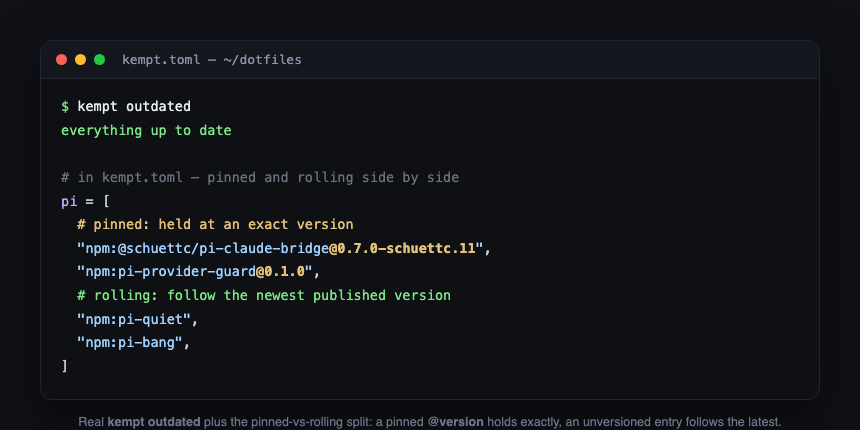
An unversioned entry is rolling: it follows the newest published version, which kempt update and kempt upgrade move it up to, and kempt outdated tells you when a newer one is out. A pinned entry, written name@version, installs exactly that version and puts it back if the machine ever ends up on a different one.
My pi extensions use both on purpose. The ones I maintain, and the ones that have to load in a certain order or need a specific version to stay compatible, are pinned; the rest roll:
pi = [
  # pinned: my fork, load-order-critical, kept exact
  "npm:@schuettc/pi-claude-bridge@0.7.0-schuettc.11",
  "npm:@gotgenes/pi-permission-system@30.2.0",
  "npm:pi-provider-guard@0.1.0",
  # rolling: track the newest published version
  "npm:pi-quiet",
  "npm:pi-memory",
  "npm:pi-bang",
]
The point of the split is that plan and apply never go to the network to check for new versions. To plan, a rolling tool is simply installed or not, and a pinned tool either matches its pin or does not. Looking for newer versions is a separate job, done only by outdated, upgrade, and update, and only when you run them. So a plan reads the same today as it will tomorrow, no matter what got published in between.
$ kempt outdated
everything up to date
The result is that I choose, one tool at a time, between "hold exactly here" and "keep current," and neither choice ever makes a routine apply behave differently on Tuesday than it did on Monday.
Downloading a binary directly
Not every tool ships through a package manager. My own command-line tools install through the download step, which fetches a binary from a set of predictable web addresses, so a tool's author only has to publish a few files at known paths:
[[packages.terminal.download]]
site = "tackle.tools"
tool = "proj"
bin = "proj"
kempt looks up the current version, downloads the matching archive for your operating system and chip, checks it against a checksum file published next to it, and puts the binary in ~/.local/bin. A download uses the same version field as everything else: leave it off and it rolls to the latest, or pin a version to hold it. github-release does the same thing from a GitHub release instead of a plain web address.
Files: symlinks, merges, and lines
The file steps put configuration in place. symlink links a file from your config repo to where it belongs, and with backup = true it moves any real file already there aside to a .bak copy first:
[[packages.core.symlink]]
from = ".zshrc"
to = "~/.zshrc"
backup = true
json-merge and toml-merge add a small piece of settings to an existing config file instead of replacing the whole thing, so several packages can each add to the same file without stepping on each other. This is how tools register themselves without overwriting one another:
[[packages.muster.json-merge]]
file = "~/.claude/settings.json"
merge = { mcpServers.muster = { command = "muster", args = ["mcp"] } }
The merge only adds and updates. If ~/.claude/settings.json already held some settings:
{
  "theme": "dark",
  "mcpServers": { "other": { "command": "other" } }
}
then applying the muster step above leaves the existing keys alone and adds one entry:
{
  "theme": "dark",
  "mcpServers": {
    "other":  { "command": "other" },
    "muster": { "command": "muster", "args": ["mcp"] }
  }
}
Nested objects are combined key by key, lists are joined together (or replaced, if you say so), and single values are overwritten. If a value contains the text ${HOME}, kempt swaps in the machine's home directory as it writes the file, which matters for config files that do not understand ~ on their own. line-in-file covers the smaller job of making sure a single line, like a shell include or a PATH entry, is present.
Verify
The verify step only checks things and never changes anything. A package can check that a command exists, that any one of a list of commands is on PATH, that a URL responds, that a symlink points where it should, or that an installed tool is on its latest release:
[[packages.core.verify]]
command-exists = "starship"

[[packages.muster.verify]]
command-exists = "muster"
version-current = { repo = "schuettc/muster" }
These checks show up in the plan as their own lines, so "is this actually working" is part of the same review as "what is about to change."
Read before you run
The command that changes how setup feels is kempt plan. It reads the manifest, inspects the live machine, and prints exactly what applying it would change. When the machine already matches, it says so, line by line:
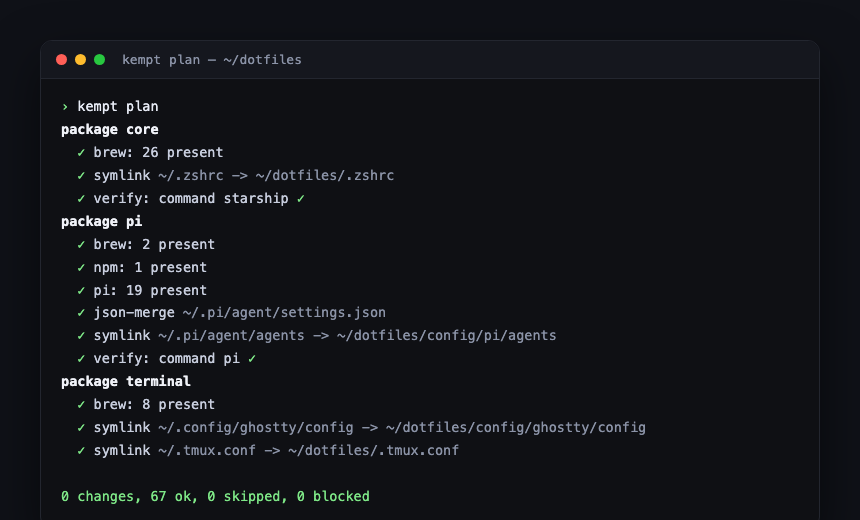
Nothing there surprises me, which is the point. When something would change, whether a new formula, a moved symlink, or a config that drifted, it shows up as a pending line instead of a silent side effect. kempt apply does the same thing but carries it out, asking before it makes changes unless you pass -yes. Because neither plan nor apply goes to the network to look up versions, the plan you read is the apply you get.
You can also run a plan for another platform without being on it, which is how I check from a Mac that a Linux box would set up correctly:
kempt plan -manifest kempt.toml -os linux -arch arm64
Profiles and the first run
A profile is just a named set of packages, like a persona. A developer profile lists the full toolchain; a minimal profile is just a pleasant shell:
[profiles.developer]
packages = ["core", "terminal", "muster", "pi"]

[profiles.minimal]
packages = ["core"]
Profiles are starting points, not rules. kempt has no way to say "do this only on this hostname" or "only in this environment." The one condition it understands is only = { os, arch }, which limits a package or step to certain operating systems or chips. Setting up a fresh machine is two commands: install the binary, then point kempt at a config repo.
curl -fsSL https://kempt.tools/install.sh | sh
kempt init https://github.com/you/dotfiles.git
kempt init fetches the repo, walks an interactive picker that preseeds from the profile you choose and lets you refine the exact package set, saves that selection, and applies it. Pass -profile <name> -yes to init a machine non-interactively, which is what a fresh box in a script wants.
Day to day
Once a selection is saved, the everyday commands operate on it without repeating -manifest or -profile:
| Command | What it does |
|---|---|
| `kempt status` | Show the cached result of the last refresh. |
| `kempt plan` | Show what `apply` would change. |
| `kempt apply` | Make the machine match the manifest. |
| `kempt refresh` | Re-fetch the repo and recompute pending changes. |
| `kempt update` | Pull the repo, update kempt itself, roll rolling entries, and apply. |
| `kempt outdated` | List installed tools and extensions with newer releases. |
| `kempt upgrade [name…]` | Roll behind tools forward to latest. |
| `kempt adopt` / `drop` | Add or remove a package, and its needs, in the selection. |
The same split runs through all of them: plan, apply, verify, and refresh work from what is already on the machine and never go to the network for versions, while update, outdated, and upgrade are the only commands that do. If you turn it on with kempt config auto-apply-files true, refresh will even apply file changes for you on its own, because file changes are the low-risk kind kempt is allowed to make without asking, and installing software is not.
Writing your own
You do not have to start from a blank file. kempt dump inspects the machine you are on and prints a manifest that reproduces it, which is the fastest way to capture a machine you already like into a file you can read and trim down. To start clean instead, kempt new scaffolds an empty config repo with the structure already in place.
From there the loop is short. Edit the kempt.toml, run kempt lint to catch typos and unknown keys before they touch anything, and run kempt plan to see exactly what the file would do to your machine. When the plan looks right, kempt apply carries it out. For help while you type, run kempt schema > kempt.schema.json and point your editor at it, and a TOML plugin will autocomplete field names and flag mistakes as you write.
Sharing a machine
A config source can be a git repo, cloned and pulled by kempt update, or a gzipped tarball URL, which needs no git at all: kempt fetches and re-extracts it on update. And for a manifest that stands on its own, one that installs software and merges config but does not link in any files from a repo, you can skip the repo entirely and point kempt straight at a single file over the web or standard input:
kempt plan -manifest https://example.com/kempt.toml
curl -fsSL https://example.com/kempt.toml \
  | kempt apply -manifest - -yes
The manifest is the machine now. To know what is on a box I read the file, to change it I edit the file and run plan, and a new laptop becomes mine in the time it takes to download some binaries, with a plan I read before any of it runs. The standard is specified at kempt.tools, and the source is at github.com/schuettc/kempt.